
What are the differences between a warehouse deal and a term deal


The primary difference between a warehouse deal and a term deal lies in the structure of the financing, the timing, and the specific nature of the agreements involved. These types of deals are often used in the context of financing transactions such as loans, mortgages, or other asset-backed securities, but they function differently in terms of the duration and structure of the credit.

The key differences between a warehouse deal and a term deal:

  1. Purpose and Use
    Warehouse Deal:

    ]A warehouse deal is typically a short-term financing arrangement used to fund the acquisition or holding of assets (such as loans, receivables, or mortgages) before they are sold, securitized, or otherwise liquidated. The financing provided in a warehouse deal is usually intended for temporary holding of assets until they can be moved onto the secondary market or packaged into a security.
    It is often used by lenders to finance the origination of loans or mortgages, where the lender borrows funds on a short-term basis to originate loans and then sells them to another investor or institution after a short period.
    Term Deal:
    A term deal, on the other hand, is a longer-term financing arrangement. It is typically used to fund long-term capital needs and involves a loan or credit facility that is repaid over an extended period (e.g., several years).
    In a term deal, the borrower receives a lump sum or a series of payments and repays the debt over a fixed term, typically at a set interest rate and with a defined repayment schedule.
  2. Duration
    Warehouse Deal:

    Short-Term: Warehouse lines of credit are short-term, often ranging from a few months to a year, depending on the deal. The borrower may use the credit facility repeatedly (revolving) as they acquire and sell assets.
    The goal is to finance the purchase of assets temporarily before those assets are sold or securitized.
    Term Deal:
    Long-Term: Term loans or deals typically have longer durations, often spanning several years. The repayment is done over a structured time frame (e.g., monthly, quarterly, or annually) based on the terms agreed upon at the outset of the deal.
    The borrower is expected to repay the principal and interest over time according to the agreed-upon schedule.
  3. Repayment Structure
    Warehouse Deal:

    Revolving: In a warehouse deal, the facility is usually revolving. The borrower can borrow and repay funds multiple times (like a line of credit) as they acquire and sell assets. Once assets are sold, the loan is repaid, and the borrower can access the funds again for new assets.
    The repayment is typically tied to the liquidation or sale of the assets.
    Term Deal:
    Fixed Payments: In a term deal, the borrower typically receives a lump sum of money or a series of disbursements and then repays the loan in fixed installments over the life of the loan, often with interest. The payment structure is rigid and defined from the outset.
    Repayments are usually scheduled and predictable over the life of the loan.
  4. Collateral
    Warehouse Deal:

    Secured by Assets: Warehouse financing is usually secured by the assets the borrower is holding (e.g., mortgages, loans, receivables). The collateral provides security to the lender in case the borrower defaults on the loan.
    The borrower may be required to pledge the assets they acquire as collateral for the warehouse line of credit.
    Term Deal:
    Secured or Unsecured: Term loans can be either secured (backed by collateral, such as property or equipment) or unsecured (where no specific assets are pledged as security). The specific nature of the collateral will depend on the agreement between the borrower and the lender.
    If secured, term loans often have specific collateral tied to the loan.
  5. Interest Rate
    Warehouse Deal:

    Higher Interest Rates: Warehouse lines of credit typically have higher interest rates than term loans. This is due to the short-term and higher-risk nature of the financing, as well as the flexibility of the revolving structure.
    The interest rate is often based on a short-term benchmark rate (such as LIBOR or SOFR) plus a spread.
    Term Deal:

    Lower Interest Rates: Term loans typically have lower interest rates compared to warehouse lines of credit, particularly if they are secured by collateral. The interest rate is usually fixed or based on a longer-term benchmark rate.
    Since the term deal is longer in duration and involves more stable repayment terms, the lender often offers more favorable interest rates.
  6. Liquidity and Flexibility
    Warehouse Deal:

    High Liquidity and Flexibility: Warehouse deals provide borrowers with high liquidity and flexibility, as they can borrow and repay funds repeatedly as they acquire and sell assets. The borrower can access additional funds as needed to acquire more assets.
    This revolving nature allows the borrower to maintain flexibility in managing their operations and financing.
    Term Deal:
    Lower Liquidity and Flexibility: Term loans are less flexible in comparison, as the borrower is committed to a fixed repayment schedule over a set period. There is no ability to access additional funds unless the borrower seeks refinancing or a new loan.
    The repayment obligations are fixed, which means the borrower must have the ability to meet the regular payments.
  7. Examples of Use
    Warehouse Deal:

    Commonly used by mortgage lenders, auto loan originators, and asset-backed securities (ABS) issuers who need short-term funding to purchase loans or receivables, with the intent to sell those assets in the secondary market or securitize them into securities.
    Term Deal:
    Commonly used for long-term financing needs such as business loans, real estate loans, or corporate financing, where the borrower requires capital for a longer period and repays the debt in structured installments over time.

    Summary
    In summary, warehouse deals are short-term, revolving credit facilities used to fund the acquisition or holding of assets until they can be sold or securitized. They are more flexible but carry higher interest rates due to their short-term nature. Term deals, on the other hand, are longer-term loans with fixed repayment schedules and typically lower interest rates. They are used for capital-intensive financing needs and often involve predictable repayments over a set period.

VBA macro for extracting defined terms

‘Document assembly’ is the process by which an operator creates an entire document from a variety of component parts and then personalizes that document to meet the needs of the intended recipient.
Included within the scope of the term ‘document assembly’ are how source clauses are:

· created
· neutered, and
· assembled.

One of the first steps in automatically assembling legal documents is identifying terms in square brackets. This is the way that some automated document assembly systems work like Pathagoras. To create a legal document for automation and assembly begins with surrounding key terms such as party names and so on with square brackets eg [William Higgs] or [Higgs Limited]. You get the idea. The idea is that the square bracketed terms will often be repeated throughout a legal document, so it is efficient to define them.

The [Initial Unitholders] have paid the [Initial Sum] to the [Trustee] to establish a trust on the terms of the[Trust Deed].
The terms  Initial Unitholders, Initial Sum, Trustee and Trust Deed are all obviously variables and they would be repeated throughout a contract. A 'variable' is a place holder for personal data. You should strategically place variables within your source clauses where you want that data to appear. Consequently, those variables will also appear in the first draft of any newly assembled document.

At some stage in the assembly we will need to prompt the user to enter those terms.
So lets start by producing a Word Macro that searches for terms in [ ] and produce them in a new Word Document. Once we have the Terms we can then prompt our assembly program to complete the legal contract with those specific terms. This is called an Interview. An Interview is a series of questions asked at the beginning of the final assembly process regarding what you want included/discarded in the final legal document. It consists of questions that are presented in a menu format.
The interview is asked in a single window, with multiple questions being asked. More about the Interview in later blogs.

Here is some code you can enter into a macro in Microsoft Word. Obviously make sure your Word Document has some [ ] terms in it.

Option Explicit

' ===========
' ENTRY POINT
' ===========
Sub ExtractBracketedText_ToTable()
    Dim doc As Document: Set doc = ActiveDocument
    Dim bodyRng As Range: Set bodyRng = doc.StoryRanges(wdMainTextStory) ' main text only

    ' Regex to capture [ ... ] (non-nested), allowing across line breaks
    Dim rx As Object: Set rx = CreateObject("VBScript.RegExp")
    rx.Global = True
    rx.IgnoreCase = False
    rx.MultiLine = True
    ' Group 1 captures the inner text (without the brackets)
    rx.Pattern = "\[([\s\S]*?)\]"

    If Not rx.Test(bodyRng.Text) Then
        MsgBox "No bracketed text found in the main story.", vbInformation
        Exit Sub
    End If

    Dim matches As Object, m As Object
    Set matches = rx.Execute(bodyRng.Text)

    ' Prepare a simple record type via arrays
    Dim n As Long: n = matches.Count
    Dim arrText() As String, arrPage() As Long, arrCtx() As String, arrStart() As Long, arrLen() As Long
    ReDim arrText(1 To n)
    ReDim arrPage(1 To n)
    ReDim arrCtx(1 To n)
    ReDim arrStart(1 To n)
    ReDim arrLen(1 To n)

    Dim i As Long, startInDoc As Long, lengthInDoc As Long
    For i = 1 To n
        Set m = matches(i - 1)
        ' Map back to document coordinates
        startInDoc = bodyRng.Start + m.FirstIndex
        lengthInDoc = m.Length

        arrStart(i) = startInDoc
        arrLen(i) = lengthInDoc
        arrText(i) = CleanOneLine(m.SubMatches(0)) ' inner text only

        ' Page number (guard errors just in case)
        Dim hitRng As Range
        Set hitRng = doc.Range(startInDoc, startInDoc + lengthInDoc)
        On Error Resume Next
        arrPage(i) = hitRng.Information(wdActiveEndAdjustedPageNumber)
        If Err.Number <> 0 Then
            Err.Clear: arrPage(i) = 0
        End If
        On Error GoTo 0

        ' Context snippet around the entire [ ... ] region
        arrCtx(i) = GetContextSnippet(doc, startInDoc, lengthInDoc, 45)
    Next i

    RenderResultsTable arrText, arrPage, arrCtx
    MsgBox "Bracketed-text report created.", vbInformation
End Sub

' =================
' RENDER TO NEW DOC
' =================
Private Sub RenderResultsTable(ByRef arrText() As String, ByRef arrPage() As Long, ByRef arrCtx() As String)
    Dim outDoc As Document: Set outDoc = Documents.Add
    outDoc.Activate

    Selection.Style = wdStyleHeading1
    Selection.TypeText "Bracketed Text Report"
    Selection.TypeParagraph
    Selection.Style = wdStyleNormal
    Selection.TypeText "Generated: " & Format(Now, "yyyy-mm-dd hh:nn")
    Selection.TypeParagraph: Selection.TypeParagraph

    Dim n As Long: n = UBound(arrText) - LBound(arrText) + 1
    If n <= 0 Then
        Selection.TypeText "No results."
        Exit Sub
    End If

    Dim tbl As Table
    Set tbl = outDoc.Tables.Add(Selection.Range, n + 1, 4)
    With tbl
        .Style = "Table Grid"
        .Cell(1, 1).Range.Text = "#"
        .Cell(1, 2).Range.Text = "Extracted Text"
        .Cell(1, 3).Range.Text = "Page"
        .Cell(1, 4).Range.Text = "Context"
        .Rows(1).Range.Bold = True
    End With

    Dim i As Long, row As Long
    row = 2
    For i = LBound(arrText) To UBound(arrText)
        tbl.Cell(row, 1).Range.Text = CStr(i - LBound(arrText) + 1)
        tbl.Cell(row, 2).Range.Text = arrText(i)
        If arrPage(i) > 0 Then
            tbl.Cell(row, 3).Range.Text = CStr(arrPage(i))
        Else
            tbl.Cell(row, 3).Range.Text = "-"
        End If
        tbl.Cell(row, 4).Range.Text = arrCtx(i)
        row = row + 1
    Next i

    ' Nice column widths (percent)
    tbl.Columns(1).PreferredWidthType = wdPreferredWidthPercent: tbl.Columns(1).PreferredWidth = 6
    tbl.Columns(2).PreferredWidthType = wdPreferredWidthPercent: tbl.Columns(2).PreferredWidth = 39
    tbl.Columns(3).PreferredWidthType = wdPreferredWidthPercent: tbl.Columns(3).PreferredWidth = 8
    tbl.Columns(4).PreferredWidthType = wdPreferredWidthPercent: tbl.Columns(4).PreferredWidth = 47
End Sub

' ========================
' CONTEXT & SMALL HELPERS
' ========================
Private Function GetContextSnippet(doc As Document, ByVal startInDoc As Long, ByVal lengthInDoc As Long, ByVal wing As Long) As String
    Dim L As Long, R As Long
    L = MaxLng(0, startInDoc - wing)
    R = MinLng(doc.Content.End, startInDoc + lengthInDoc + wing)

    Dim leftR As Range, rightR As Range, hitR As Range
    Set hitR = doc.Range(startInDoc, startInDoc + lengthInDoc)
    Set leftR = doc.Range(L, startInDoc)
    Set rightR = doc.Range(startInDoc + lengthInDoc, R)

    GetContextSnippet = "…" & CleanOneLine(leftR.Text) & "[" & CleanOneLine(hitR.Text) & "]" & CleanOneLine(rightR.Text) & "…"
End Function

Private Function CleanOneLine(ByVal s As String) As String
    s = Replace$(s, vbCr, " ")
    s = Replace$(s, vbLf, " ")
    s = Replace$(s, Chr$(160), " ")
    Do While InStr(s, "  ") > 0
        s = Replace$(s, "  ", " ")
    Loop
    CleanOneLine = Trim$(s)
End Function

Private Function MinLng(a As Long, b As Long) As Long
    If a < b Then MinLng = a Else MinLng = b
End Function

Private Function MaxLng(a As Long, b As Long) As Long
    If a > b Then MaxLng = a Else MaxLng = b
End Function

Good luck

Vibe Coding for lawyers

I want to tell my fellow lawyer coders about this new thing called Vibe Coding.

So, what is it? Vibe coding is an AI-powered development approach where a human communicates with an AI agent in natural language to generate functional code, focusing on high-level ideas and outcomes rather than intricate coding details. Popularised by OpenAI co-founder Andrej Karpathy in early 2025, this method allows users to describe desired app functionality and rely on the AI to handle implementation, accelerating development and making it accessible to those with limited programming experience.

Vibe coding allows you as a developer to concentrate on the creative aspects of app building, like user experience and functionality, instead of getting bogged down in technical specifics. Technical specifics always slowed down my coding and left me frustrated.

You essentially prompt your way to producing beautiful code.

Here is an example. Using your favourite AI product such as ChatGPT or Claude use the prompt

"create me a VBA macro that searches through a word document to find Capitalised terms." 

You will receive something like the visual basic code below, as your output from the prompt
Option Explicit

' =========================
' CAPITALISED TERMS FINDER
' =========================
' Scans the main body of the active document for Title-Case terms (1–5 words),
' skips first word of each sentence, deduplicates, counts, and reports:
' Term | Count | First Page | First Context.
'
' Run: FindCapitalisedTerms_Report
' -------------------------

Sub FindCapitalisedTerms_Report()
Dim results As Object: Set results = CreateObject("Scripting.Dictionary")
Dim stopList As Object: Set stopList = BuildStopList()

' ---- Regex setup (safe pattern) ----
Dim rx As Object: Set rx = CreateObject("VBScript.RegExp")
rx.Global = True
rx.IgnoreCase = False
rx.Multiline = True
' 1–5 Title-Case words; allow internal hyphen or apostrophe (straight or curly)
' NOTE: hyphen is first in the char class to avoid "invalid range" errors.
rx.Pattern = "\b(?:[A-Z][a-z]{2,}(?:[-’'][A-Za-z]{2,})?)(?:\s+(?:[A-Z][a-z]{2,}(?:[-’'][A-Za-z]{2,})?)){0,4}\b"

Dim doc As Document: Set doc = ActiveDocument

' Work only in the main story (avoids header/footer/textbox surprises)
Dim bodyRng As Range
Set bodyRng = doc.StoryRanges(wdMainTextStory)

Dim s As Range, scanRng As Range
Dim m As Object, matches As Object
Dim term As String
Dim startInDoc As Long, lengthInDoc As Long, pg As Long
Dim ctx As String

For Each s In bodyRng.Sentences
If s.words.Count > 1 Then
Set scanRng = s.Duplicate
' Skip the first word (most common false positive)
On Error Resume Next
scanRng.Start = s.words(2).Start
If Err.Number <> 0 Then
Err.Clear
On Error GoTo 0
GoTo NextSentence
End If
On Error GoTo 0

' Guard Execute with Test (avoids odd range errors)
If rx.Test(scanRng.Text) Then
Set matches = rx.Execute(scanRng.Text)
For Each m In matches
term = Trim$(m.Value)
If ShouldKeepTerm(term, stopList) Then
startInDoc = scanRng.Start + m.FirstIndex
lengthInDoc = m.Length

Dim hitRng As Range
Set hitRng = doc.Range(startInDoc, startInDoc + lengthInDoc)

' Page lookup can fail in unusual views/objects; guard it.
On Error Resume Next
pg = hitRng.Information(wdActiveEndAdjustedPageNumber)
If Err.Number <> 0 Then
Err.Clear: pg = 0
End If
On Error GoTo 0

ctx = GetContextSnippet(doc, startInDoc, lengthInDoc, 45)

If results.Exists(term) Then
Dim parts() As String
parts = Split(results(term), "|", 3)
parts(0) = CStr(CLng(parts(0)) + 1)
results(term) = Join(parts, "|")
Else
results.Add term, "1|" & CStr(pg) & "|" & ctx
End If
End If
Next m
End If
End If
NextSentence:
Next s

RenderReport results
MsgBox "Capitalised-terms report created.", vbInformation
End Sub

' -------------------------
' Filtering
' -------------------------
Private Function ShouldKeepTerm(ByVal term As String, ByVal stopList As Object) As Boolean
Dim t As String: t = Trim$(term)

' Exclude ALL-CAPS tokens outright
If t = UCase$(t) Then ShouldKeepTerm = False: Exit Function

' Single word?
If InStr(t, " ") = 0 Then
If Len(t) < 3 Then ShouldKeepTerm = False: Exit Function
If stopList.Exists(t) Then ShouldKeepTerm = False: Exit Function
Else
' For multi-word terms, keep if at least one word isn't on the stop list
Dim words() As String, i As Long, ok As Boolean
words = Split(t, " ")
ok = False
For i = LBound(words) To UBound(words)
If Not stopList.Exists(words(i)) Then ok = True: Exit For
Next i
If Not ok Then ShouldKeepTerm = False: Exit Function
End If

ShouldKeepTerm = True
End Function

Private Function BuildStopList() As Object
Dim d As Object: Set d = CreateObject("Scripting.Dictionary")
Dim arr As Variant
arr = Array( _
"The", "A", "An", "And", "Or", "Of", "For", "To", "In", "On", "At", "By", _
"I", "You", "We", "He", "She", "They", _
"Monday", "Tuesday", "Wednesday", "Thursday", "Friday", "Saturday", "Sunday", _
"January", "February", "March", "April", "May", "June", "July", "August", "September", "October", "November", "December", _
"Section", "Schedule", "Figure", "Table")
Dim i As Long
For i = LBound(arr) To UBound(arr): d(arr(i)) = True: Next i
Set BuildStopList = d
End Function

' -------------------------
' Context & utilities
' -------------------------
Private Function GetContextSnippet(doc As Document, ByVal startInDoc As Long, ByVal lengthInDoc As Long, ByVal wing As Long) As String
Dim L As Long, R As Long
L = MaxLng(0, startInDoc - wing)
R = MinLng(doc.Content.End, startInDoc + lengthInDoc + wing)

Dim leftR As Range, rightR As Range, hitR As Range
Set hitR = doc.Range(startInDoc, startInDoc + lengthInDoc)
Set leftR = doc.Range(L, startInDoc)
Set rightR = doc.Range(startInDoc + lengthInDoc, R)

GetContextSnippet = "…" & CleanOneLine(leftR.Text) & "[" & _
CleanOneLine(hitR.Text) & "]" & _
CleanOneLine(rightR.Text) & "…"
End Function

Private Function CleanOneLine(ByVal s As String) As String
s = Replace$(s, vbCr, " ")
s = Replace$(s, vbLf, " ")
s = Replace$(s, Chr$(160), " ")
Do While InStr(s, " ") > 0
s = Replace$(s, " ", " ")
Loop
CleanOneLine = Trim$(s)
End Function

Private Function MinLng(a As Long, b As Long) As Long
If a < b Then MinLng = a Else MinLng = b
End Function

Private Function MaxLng(a As Long, b As Long) As Long
If a > b Then MaxLng = a Else MaxLng = b
End Function

' -------------------------
' Report rendering
' -------------------------
Private Sub RenderReport(results As Object)
Dim outDoc As Document: Set outDoc = Documents.Add
outDoc.Activate

Selection.Style = wdStyleHeading1
Selection.TypeText "Capitalised Terms"
Selection.TypeParagraph
Selection.Style = wdStyleNormal
Selection.TypeText "Generated: " & Format(Now, "yyyy-mm-dd hh:nn")
Selection.TypeParagraph: Selection.TypeParagraph

Dim n As Long: n = results.Count
If n = 0 Then
Selection.TypeText "No capitalised terms found (given current heuristics)."
Exit Sub
End If

Dim tbl As Table
Set tbl = outDoc.Tables.Add(Selection.Range, n + 1, 4)
With tbl
.Style = "Table Grid"
.Cell(1, 1).Range.Text = "Term"
.Cell(1, 2).Range.Text = "Count"
.Cell(1, 3).Range.Text = "First Page"
.Cell(1, 4).Range.Text = "First Context"
.Rows(1).Range.Bold = True
End With

' Alphabetical sort for a traditional, predictable report
Dim keys() As String, i As Long, row As Long, k As Variant, parts() As String
ReDim keys(0 To n - 1)
i = 0
For Each k In results.keys: keys(i) = CStr(k): i = i + 1: Next k
QuickSort keys, LBound(keys), UBound(keys)

row = 2
For i = LBound(keys) To UBound(keys)
parts = Split(results(keys(i)), "|", 3)
tbl.Cell(row, 1).Range.Text = keys(i)
tbl.Cell(row, 2).Range.Text = parts(0)
tbl.Cell(row, 3).Range.Text = parts(1)
tbl.Cell(row, 4).Range.Text = parts(2)
row = row + 1
Next i

tbl.Columns(1).PreferredWidthType = wdPreferredWidthPercent: tbl.Columns(1).PreferredWidth = 25
tbl.Columns(2).PreferredWidthType = wdPreferredWidthPercent: tbl.Columns(2).PreferredWidth = 10
tbl.Columns(3).PreferredWidthType = wdPreferredWidthPercent: tbl.Columns(3).PreferredWidth = 10
tbl.Columns(4).PreferredWidthType = wdPreferredWidthPercent: tbl.Columns(4).PreferredWidth = 55
End Sub

' Simple case-insensitive quicksort for string arrays
Private Sub QuickSort(arr() As String, ByVal first As Long, ByVal last As Long)
Dim i As Long, j As Long, pivot As String, temp As String
i = first: j = last
pivot = arr((first + last) \ 2)
Do While i <= j
Do While StrComp(arr(i), pivot, vbTextCompare) < 0: i = i + 1: Loop
Do While StrComp(arr(j), pivot, vbTextCompare) > 0: j = j - 1: Loop
If i <= j Then
temp = arr(i): arr(i) = arr(j): arr(j) = temp
i = i + 1: j = j - 1
End If
Loop
If first < j Then QuickSort arr, first, j
If i < last Then QuickSort arr, i, last
End Sub


How to use

-Open your Word doc which includes the contract (which includes Defined Terms).

-Press Alt+F11 → Insert → Module → paste the code from the AI product you used.

-Close the editor and run View → Macros → FindCapitalisedTerms_Report. A new document appears with a table: Term | Count | First Page | First Context.
with the
  • Amazing. This would have taken weeks without Vibe coding!

Gunna was a man of ideas

Gunna was a man of ideas. His mind was a constant whirl of thoughts, a river of inspiration that never stopped flowing. Ideas came to him at every hour of the day and night, each one more brilliant than the last. He had a brilliant concept for a business, a new invention that would change the world, a novel that could be a bestseller, even a screenplay that would make him famous. But despite the storm of creativity that flooded his brain, Gunna never got to any of them.

 The problem wasn’t that he lacked the drive. He was passionate about his ideas. He would lie awake at night, his mind racing, as he mentally sketched out plans and strategies for every dream he had. But when it came time to actually sit down and bring those ideas to life, something always held him back.

It wasn’t laziness. Gunna had energy to spare. It wasn’t even fear of failure, though that sometimes crept in. It was simply the overwhelming nature of his thoughts. Each new idea felt more exciting than the last, and in trying to tackle them all, Gunna never seemed to make any progress. He would start one project, then get distracted by another, then another, until he had a dozen half-finished endeavors, each one slowly gathering dust.

He once bought a high-end camera with the intention of becoming a photographer. He had it for months before the lens ever touched the outside world. He started writing a novel, outlining the plot and creating detailed character sketches, but then another idea popped up—a mobile app idea that could make millions. The app was going to be a game-changer. He bought coding courses, began learning to program, but his interest shifted when he heard about an online course for graphic design. “I could make my own logo,” he thought, “why pay someone else?” And so, the app was shelved, the graphic design courses half-finished, and the camera still sat untouched.

Gunna’s friends tried to understand. They could see the potential in him, and they often encouraged him to focus. “Gunna,” his best friend Andrew said once, “if you just picked one thing and stuck with it, you could really do something amazing.” But Gunna always brushed it off. “Yeah, I know, but what about this new idea I have? What if this one’s the one?” And so, the cycle continued.

Years passed, and Gunna had become a legend in his own right, though not in the way he’d hoped. He was known for his “great ideas” among his friends and colleagues, who half-admired him, half-rolled their eyes at his constant shifting focus. “Gunna’s the guy with all the ideas, but never any results,” they would joke, and while it stung, Gunna couldn’t argue. He was the guy with all the ideas. But results? Those remained out of reach.

One day, while sitting in a coffee shop with Andrew, Gunna had yet another idea. He looked across the room and saw a man reading a book about digital marketing. Suddenly, inspiration struck. “What if I create a service that helps people market their ideas? I could teach people how to turn their dreams into businesses, how to focus and execute. I could be a consultant!” he said, his eyes lighting up.

Andrew stared at him, then shook his head with a tired smile. “You know, Gunna, you’ve had that idea before. And the one about the app, and the novel, and the camera project… Maybe it’s time to focus on one thing and follow through.”

Gunna sat back, taking in the words. He hadn’t really thought about it that way before. He was so busy chasing the next big idea that he’d lost sight of the one thing that could turn all his dreams into reality: action.

That night, Gunna did something different. Instead of starting a new project, he opened a folder on his laptop, the one Andrewed “Gunna’s Great Ideas.” Inside were dozens of unfinished plans, sketches, outlines, and notes. He sat there for hours, reading through them all, realizing how many of those ideas had so much potential. But none of them mattered if they stayed locked away in his head.

The next morning, Gunna made a decision. He was going to finish something. Anything. He picked up his camera and went for a walk. The first few shots weren’t perfect, but it didn’t matter. He kept going, learning with every click of the lens. Slowly, he began to finish things. A website, a small business idea, a blog. Each project, though imperfect, was a step closer to where he wanted to be.

Years later, Gunna wasn’t known as the guy with endless ideas. He was known as the man who finished what he started. His friends no longer joked about his unfinished plans because they had all become a reality. And though he still had new ideas, Gunna had learned one invaluable lesson: the best ideas are the ones you actually do.

Gunna never stopped dreaming, but now, he also knew how to make those dreams come true. And in the end, that was all he really needed.

From Fire to Artificial Intelligence: Harnessing Power for Progress or Peril?


The control of fire and the development of artificial general intelligence (AI) are both transformative milestones in human history, expanding our capabilities while introducing significant risks. Fire allowed early humans to cook food, stay warm, and protect themselves, leading to biological and social advancements. Similarly, AI has the potential to revolutionise industries, automate cognitive tasks, and drive scientific breakthroughs.

A key similarity is the challenge of control. Fire, while beneficial, also caused destruction through wildfires and accidents. Early societies had to develop methods to contain and regulate its use. Likewise, AI presents risks such as misaligned decision-making, ethical concerns, and unintended consequences. Just as humans mastered fire through safety measures, AI must be governed carefully to prevent harm.

Another difference is pace—fire was integrated over millennia, while AI could emerge within decades, requiring immediate safeguards. If left unchecked, AI could lead to mass unemployment, security risks, or loss of human oversight.

Ultimately, both fire and AI represent dual potential—great advancement or catastrophic consequences. Learning from history, humanity must proactively manage AI through regulations and ethical frameworks, ensuring that it serves as a force for progress rather than destruction.

Is forgiveness a weakness?


I often get asked to advise on disputes. Most of the time the parties are well entrenched. They are reluctant to back down from their position. Sometimes things turn ugly.

Forgiveness it’s often seen as a sign of strength. It takes emotional resilience and maturity to forgive someone, especially if they’ve hurt you deeply.

Forgiving allows you to release the burden of anger or resentment, which can free you to move forward and heal.

It doesn’t mean you condone or forget the wrong, but it means you’re choosing peace over pain. In some cases, it even takes more strength to forgive.

Do you want to free yourself of the pain of the moment then think about forgiveness.

“Technology is exponential and exponentials are deceptive”

“Technology is exponential and exponentials are deceptive” – the rapid and often misleading nature of technological progress.

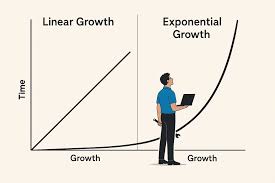
Many technologies, especially in computing and artificial intelligence, follow an exponential growth pattern. This means their capabilities double over regular intervals. We’ve all heard of Moore’s Law – the number of transistors on a chip doubles roughly every two years. However, exponentials are deceptive because humans naturally think in linear terms (steady, gradual change).

Neuroplasticity or the human brain’s ability to change, adapt, and reorganize itself throughout life in response to experiences is slow. Exponential growth starts slow and then explodes. This can be misleading because it catches people off guard.

For example, early AI chatbots were weak, so many dismissed AI as a niche technology. But in just a few years, AI tools like ChatGPT, Midjourney, and autonomous agents will have transformed industries.

Use of AI tools in Universities and Courts will be commonplace, encouraged and integrated into curriculum and substantive law and procedure. Just like how mobile phones changed how we interact with technology, AI is changing what technology can do for us humans. This concept warns us to pay attention early to exponential trends—whether in AI, biotech, healthcare or climate change—because by the time they become obvious, they might be unstoppable.

So fast will be the pace of change.

Get ready my friends.

Artificial Intelligence – Designing the Future of Humanity


Artificial intelligence and the autonomous systems that embed it have become the brains of the modern data economy. As such, they have started to reshape human values, trust, and power around the world. Whether in law, medicine, money, or love, technologies powered by forms of artificial intelligence are playing an increasingly prominent role in our lives.


New AI technologies can help drive cars, treat damaged brains and nudge workers to be more productive, but they also can threaten, manipulate, and alienate us from others. They can pit nation against nation, but they also can help the global community tackle some of its greatest challenges from food crises to global climate change.

As we cede more decisions to thinking machines, we face new questions about staying safe, keeping a job and having a say over the direction of our lives.


How AI evolves and what role it takes in our lives for better or worse, might depend on our race, gender, age, behaviour, cognitive capacity or nationality.


This presents manifold ethical and cross-cultural dilemmas.